

Create & Manage Rules
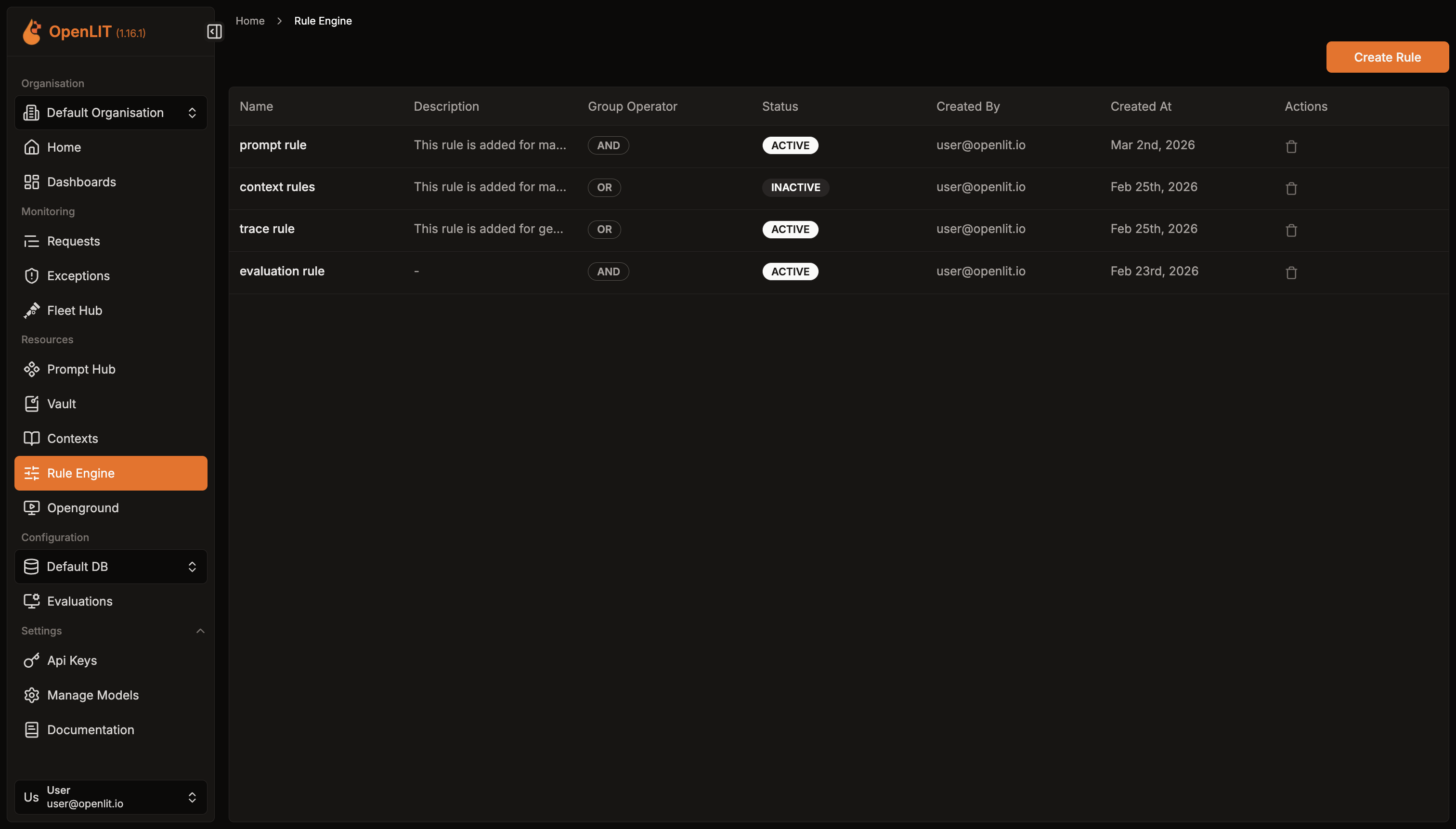
Open Protect → Policies → Detection rules (/rule-engine; the page header reads Rule Engine). Its Rules tab lists match rules and detection rules together, with columns for Name, Kind, Status, Severity, Last run, Last match and Actions. Match rules show the kind Match, a status of Active or Inactive, and “Per request” as their last run, because they are evaluated per request rather than on a schedule. Use Show rules of kind to list only match rules. Clicking anywhere on a row opens that rule’s detail page.
Create a rule
Section titled “Create a rule”Once your database connection is healthy, a Create Rule button appears in the page header. Click it to open the dialog; there’s no separate page for creating a match rule. (New detection next to the list creates a detection rule instead.)
Give it a Name, optionally a Description, choose the Group Operator and the Status, as described below.
Click Create rule. The rule is created without conditions; open it and add them as in Conditions, then test them with Preview.
The dialog title is “Create a new rule” when opened from the list page. If you instead start from a Context or Prompt’s own page, the same dialog opens titled “Create rule and link to context” or “Create rule and link to prompt”, and pre-fills the link to that entity for you.
The dialog has these fields:
- Name - required, e.g. “High cost alert”.
- Description - optional, describing what the rule does.
- Group Operator - required. Choose “AND – all groups match” or “OR – any group matches” (default AND). This sets how the rule’s condition groups are combined once you add them - see Conditions.
- Status - required. Choose Active or Inactive (default Active). Only Active rules are ever evaluated.
The rule is created without any conditions or linked entities yet - you add those from its detail page.
The rule detail page
Section titled “The rule detail page”Opening a rule (/rule-engine/[id]) shows a Back button to return to the list, plus:
- A rule info card and the condition builder on the left.
- A Rule Preview card and an Associated Entities card, stacked on the right.
The rule info card shows the Name, Status badge, Group Operator badge, and Created by {name} · {date}, plus the Description if one was set. Click the Edit Details (pencil) button to switch into edit mode for Name, Description, Group Operator, and Status, with Cancel and Save buttons.
See Conditions for how to build the matching logic, Preview for testing it against recent traces, and Linked Entities for connecting the rule to a Context, Prompt, or Evaluation Type.
Delete a rule
Section titled “Delete a rule”From the list page, click the delete (trash) icon in a rule’s Actions column. You’ll be asked to confirm:
Delete this rule? Deleting this rule will also remove all its conditions and entity associations.
Deleting a rule removes it entirely, along with its condition groups and any entity links - this can’t be undone.
Conditions
Build condition groups, pick fields and operators, and combine groups with AND/OR