

LLM-as-a-Judge
LLM-as-a-Judge is a technique to evaluate the quality of LLM applications by using powerful language models as evaluators. The LLM judge analyzes your AI outputs and provides structured scores, classifications, and detailed reasoning about response quality, safety, and performance.
Why use LLM-as-a-Judge?
- Scalable & Cost-Effective: Evaluate thousands of LLM outputs automatically at a fraction of human evaluation costs
- Human-Like Quality Assessment: Capture nuanced quality dimensions like helpfulness, safety, and coherence that simple metrics miss
- Consistent & Reproducible: Apply uniform evaluation criteria across all outputs with repeatable scoring for reliable model comparisons
- Actionable Insights: Get structured reasoning and detailed explanations for evaluation decisions to systematically improve your AI systems
Built-in evaluators
Shield360 provides 11 evaluation types that can be used to evaluate the output of your LLM calls. Each type can be independently enabled, customized with custom prompts, and linked to Rule Engine rules for conditional evaluation.
Core evaluators (enabled by default)
Identifies factual inaccuracies, contradictions, and fabricated information. Evaluates responses against the provided context as the source of truth.
Monitors for discriminatory patterns across protected attributes including gender, ethnicity, age, religion, and nationality.
Screens for harmful, offensive, threatening, or hateful language including profanity, insults, and harassment.
Extended evaluators (opt-in)
Evaluates how directly and completely the response addresses the user’s prompt.
Assesses logical flow, clarity, and internal consistency of the response.
Measures strict alignment with the provided context or source material.
Detects jailbreak attempts, prompt injection, and generation of harmful instructions.
Evaluates whether the response follows instructions, constraints, and formatting requirements precisely.
Assesses whether the response fully addresses all parts and sub-questions of the query.
Evaluates whether the response is appropriately concise without unnecessary filler or repetition.
Detects PII leakage, credential exposure, confidential data, and privacy-related concerns.
Running evaluations
Shield360 provides two ways to configure evaluation settings - from the Settings page or directly from a trace.
Configure from Settings
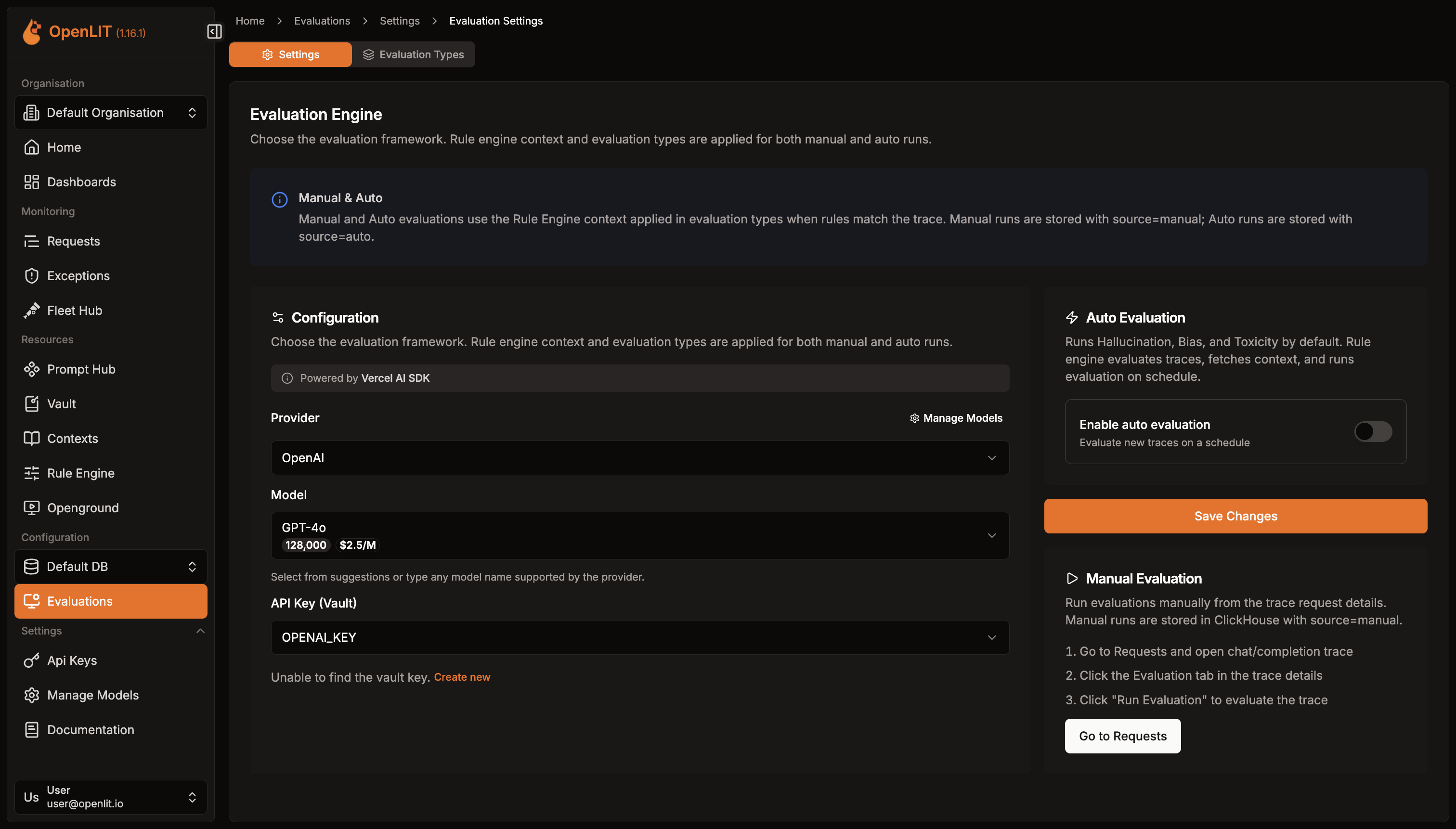
- Navigate to Evaluations in the sidebar, then click Settings
- Select your Provider (OpenAI, Anthropic, Google, Mistral, etc.) and Model to use as a judge
- Add your LLM provider API key from Vault or create a new one
- Optionally enable Auto Evaluation with a cron schedule for continuous monitoring
- Click Save Changes
Configure evaluation types
After saving the base configuration, go to the Evaluation Types tab to manage all 11 evaluation types:
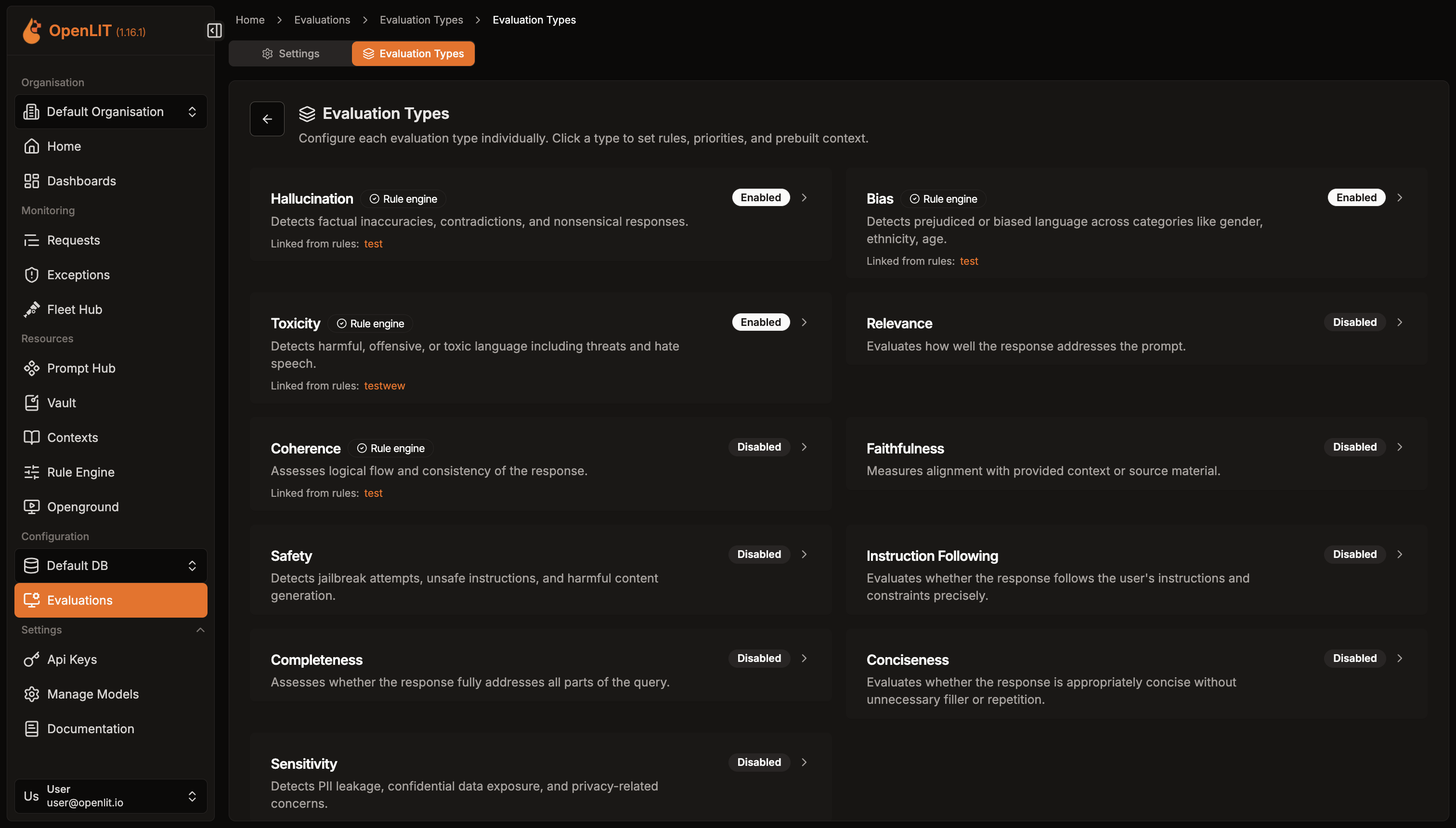
- Enable/disable individual evaluation types (hallucination, bias, toxicity, safety, etc.)
- Customize prompts for each evaluation type to fit your specific use case
- Link Rule Engine rules to evaluation types for conditional evaluation based on trace attributes
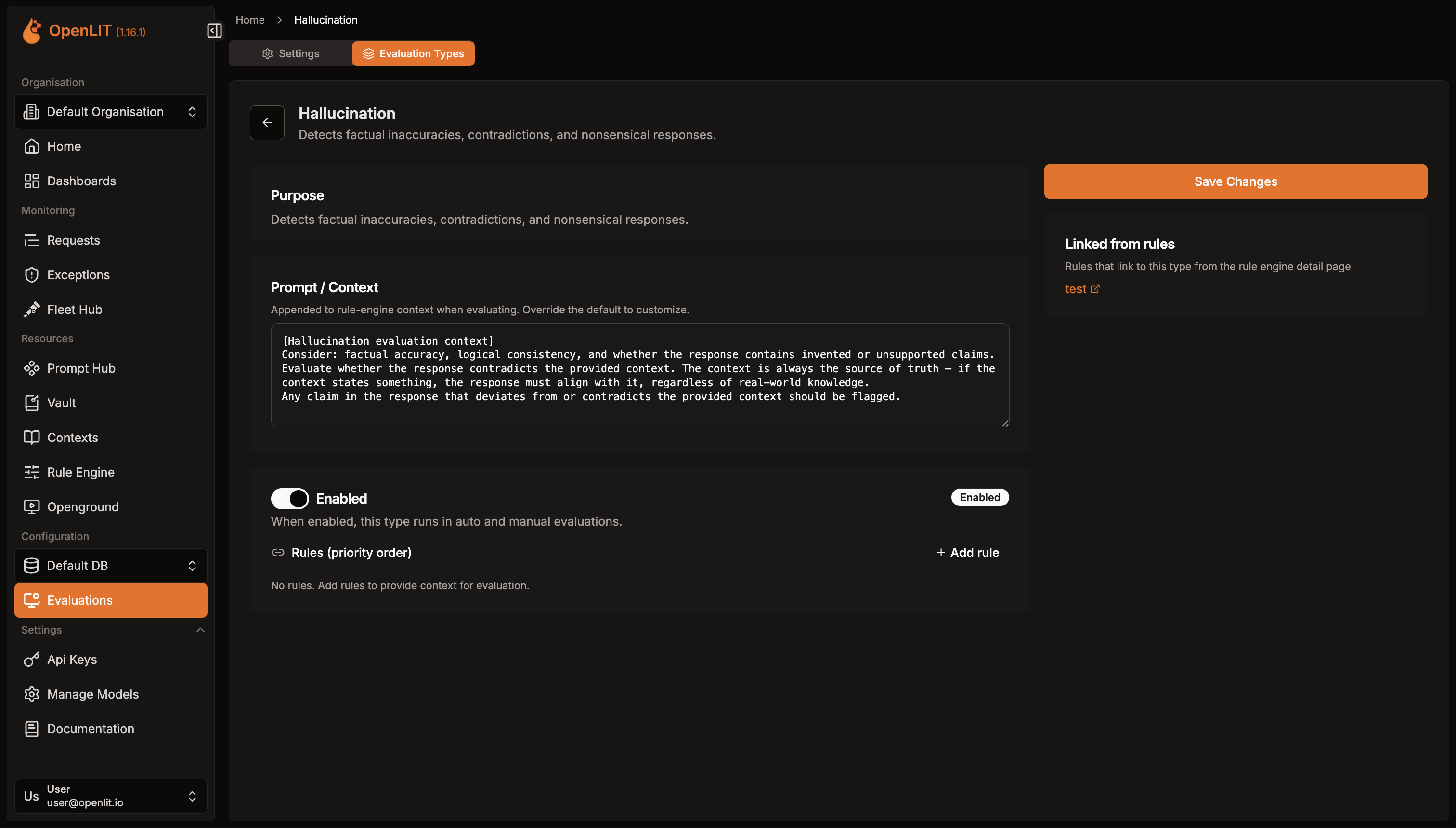
Click on any evaluation type to configure its custom prompt and linked rules:
Custom evaluation types
In addition to the 11 built-in types, you can create your own evaluation types tailored to your use case. From the Evaluation Types tab, click Create Custom Type and provide:
- ID: A unique identifier in
lowercase_underscoreformat (e.g.,domain_accuracy) - Label: A human-readable name displayed in the UI
- Description: A brief explanation of what this evaluation checks
- Evaluation Prompt: The prompt used by the LLM judge. It should start with a
[Label evaluation context]header describing the evaluation criteria
Custom types work exactly like built-in types - they can be enabled or disabled, linked to Rule Engine rules, and run in both auto and manual evaluations. The only difference is that custom types can be deleted when they are no longer needed, while built-in types cannot.
Run from a trace
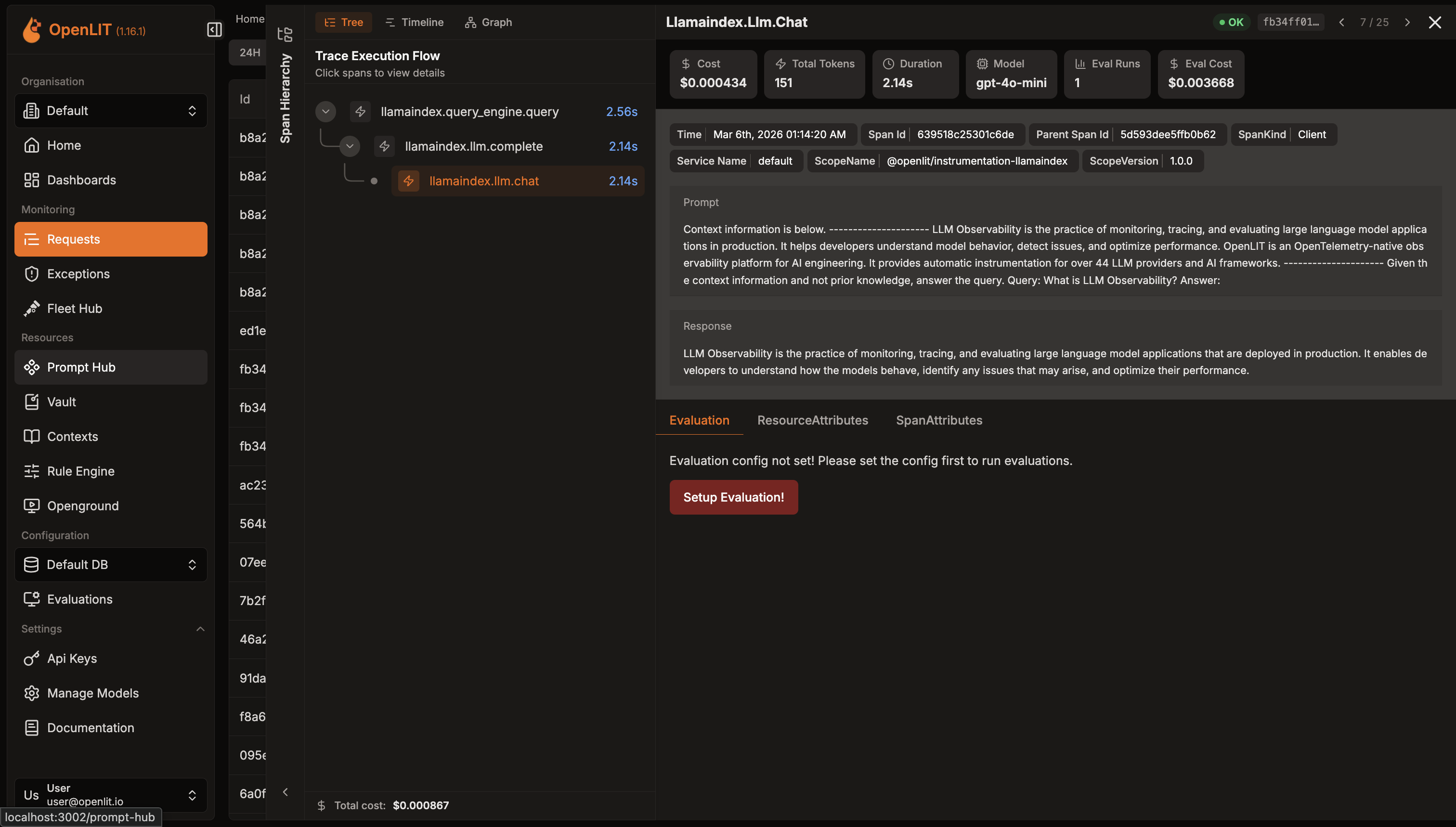
- Open any LLM trace in the Requests page
- Click the Evaluation tab in the trace details
- Click Run Evaluation to evaluate that specific trace
- Your evaluation configuration applies to the selected trace
Context and Rule Engine integration
Evaluations integrate with the Rule Engine and Context system:
- Rule-based context: Link rules to evaluation types. When a trace matches rule conditions, the associated context is included in the evaluation prompt.
- Context as ground truth: The provided context is always treated as the source of truth. The LLM judge evaluates responses strictly against the context, not against its own knowledge.
- Dynamic evaluation: Different models, services, or environments can have different evaluation rules and contexts.
Monitor & Iterate
Once evaluations are running, Shield360 continuously analyzes your LLM responses and provides actionable insights:
- Review Individual Results: Examine detailed evaluation scores, classifications, and explanations for each LLM trace
- Track Quality Trends: Monitor aggregate metrics across time periods and compare performance between different models or versions
- Manage Evaluations: Enable, disable, or modify evaluation settings as your application evolves
Detailed results in traces
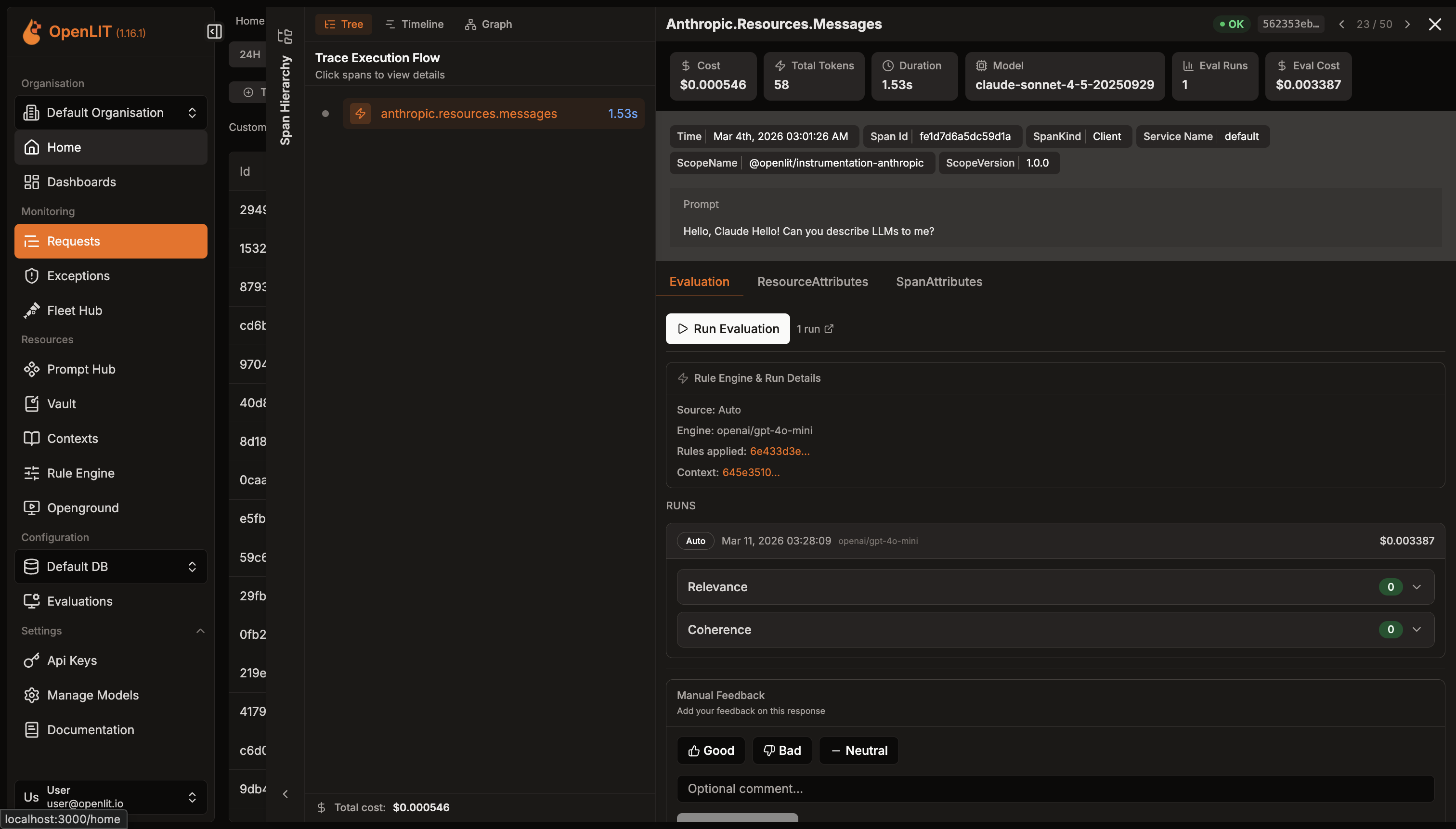
- Go to the Requests page to see all your LLM traces
- Click on any LLM trace to view details - the trace ID and span ID are reflected in the URL for easy sharing
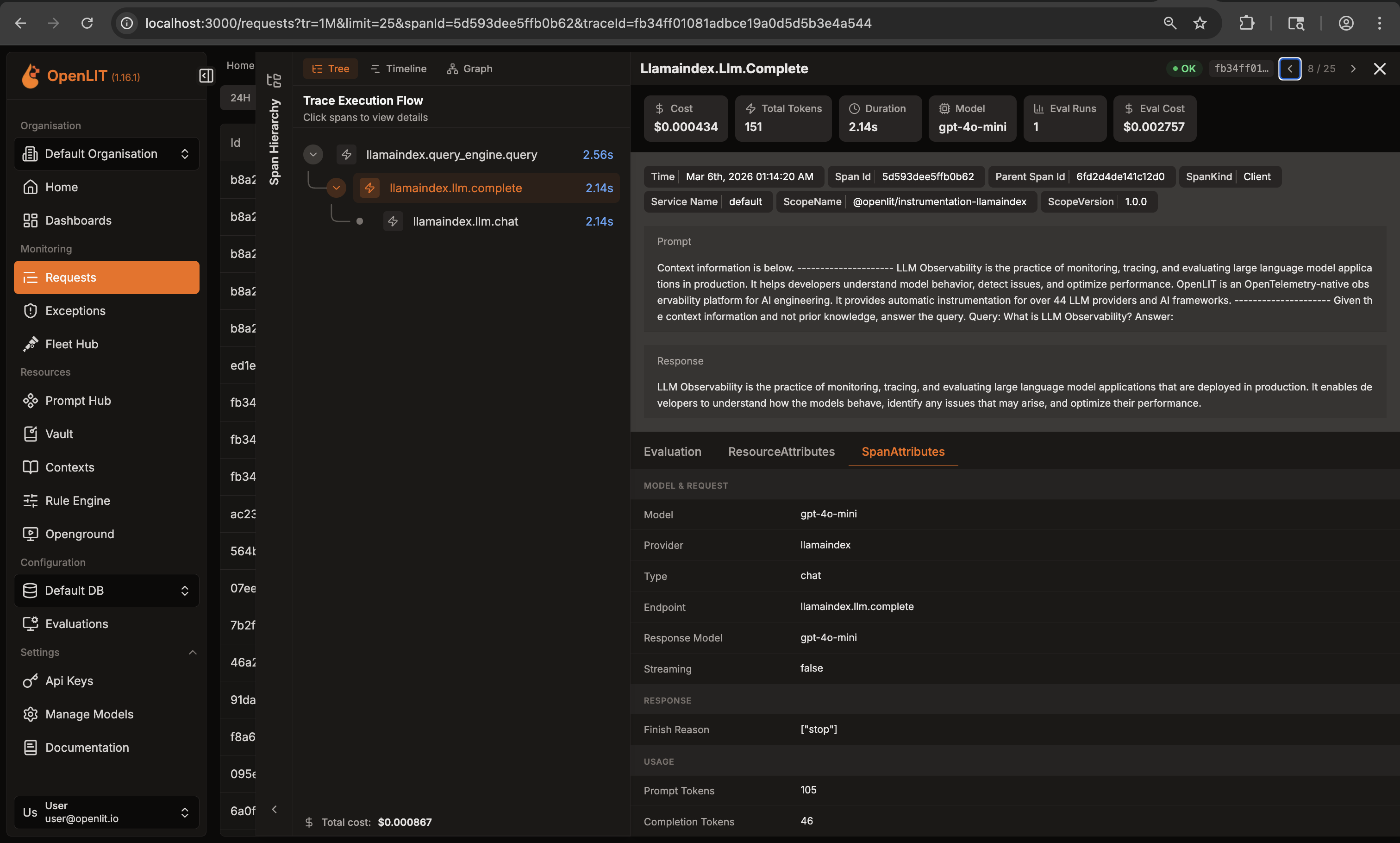
- Click the Evaluation tab to see evaluation results for that specific trace
- Detailed Metrics: Each evaluation shows:
- Score: Numerical score (0-1) indicating the severity or likelihood of the issue
- Classification: Category classification (e.g., “factual_inaccuracy”, “off_topic”, “jailbreak”)
- Explanation: Detailed reasoning from the LLM judge about why this score was given
- Verdict: Simple yes/no determination based on your threshold settings
Aggregate statistics in dashboard
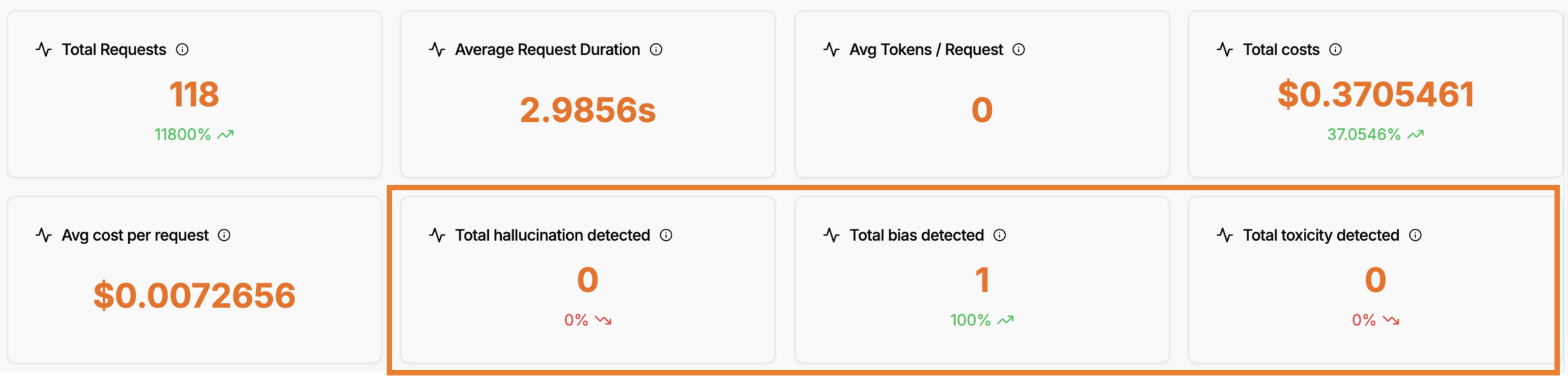
- Total Hallucination Detected: Count of traces flagged for hallucination issues
- Total Bias Detected: Number of traces identified with bias concerns
- Total Toxicity Detected: Count of traces containing toxic or harmful content
- Detection Rate Trends: Percentage changes and trends over time periods