

Manage Prompts
The Prompt Hub list page (/prompt-hub) is where every prompt in your project lives. The header has a Learn more button that links back to these docs, and a Create new button that appears once your database connection is healthy.
If you haven’t created a prompt yet, you’ll see a “Get Started with Prompt Hub” screen highlighting four things Prompt Hub gives you: Version Control, Variable Support, Team Collaboration, and Usage Tracking.
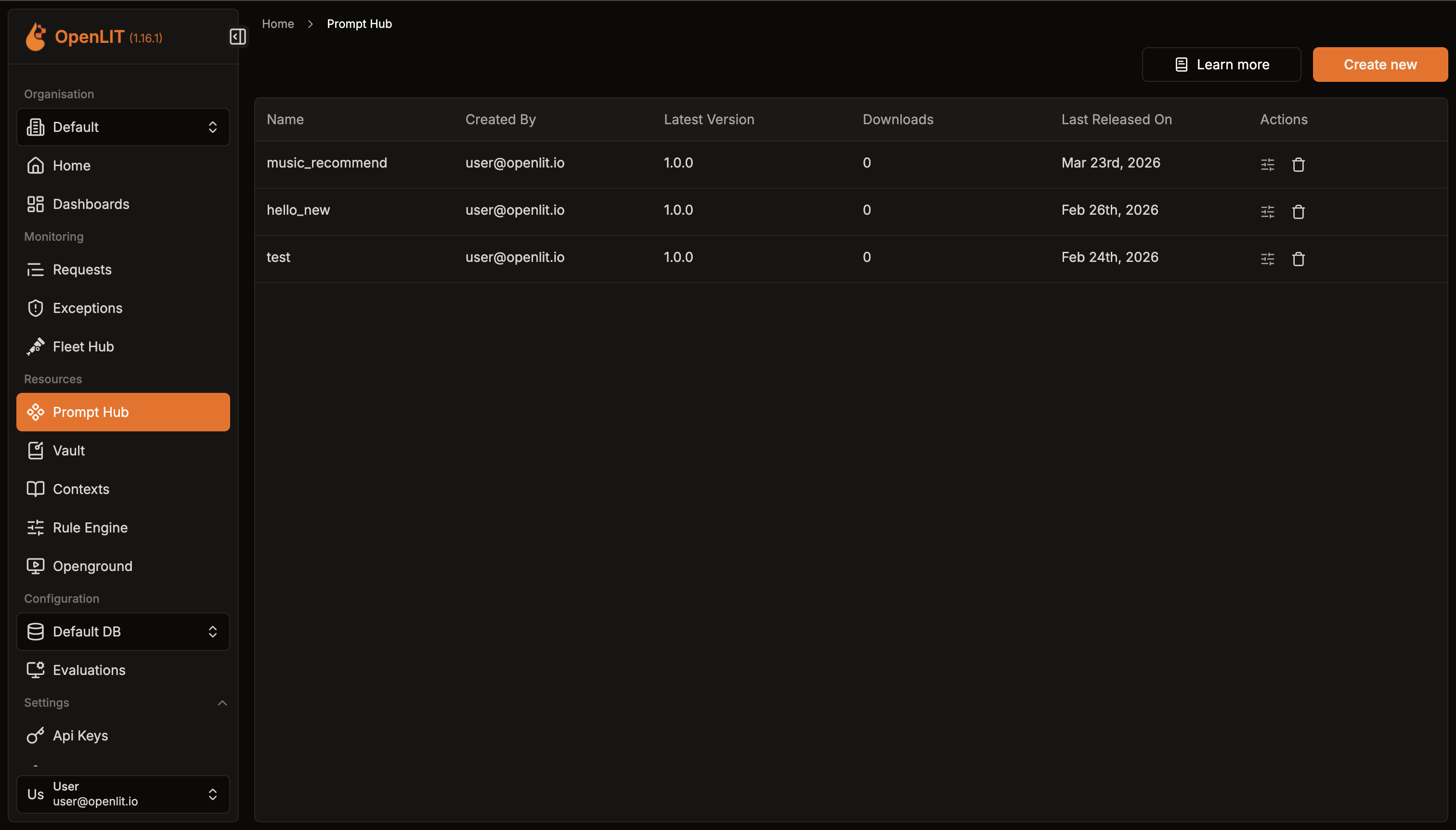
The prompt list
Section titled “The prompt list”Each row in the table shows:
| Column | What it shows |
|---|---|
| Name | The prompt’s name |
| Created By | Who created the prompt |
| Latest Version | The newest version number, or draft (lowercase) if nothing’s been published yet |
| Downloads | Total fetch count, or - if the prompt hasn’t been published |
| Last Released On | The date the latest version was published, or - if unpublished |
| Actions | A sliders icon to create and link a rule for this prompt, and a trash icon to delete it |
Clicking anywhere else on a row opens that prompt’s detail page. Deleting a prompt asks you to confirm: “Are you sure you want to delete this prompt?”
Creating a prompt
Section titled “Creating a prompt”Click Create new to open the create page (/prompt-hub/new). The header has Back and Save Prompt buttons.
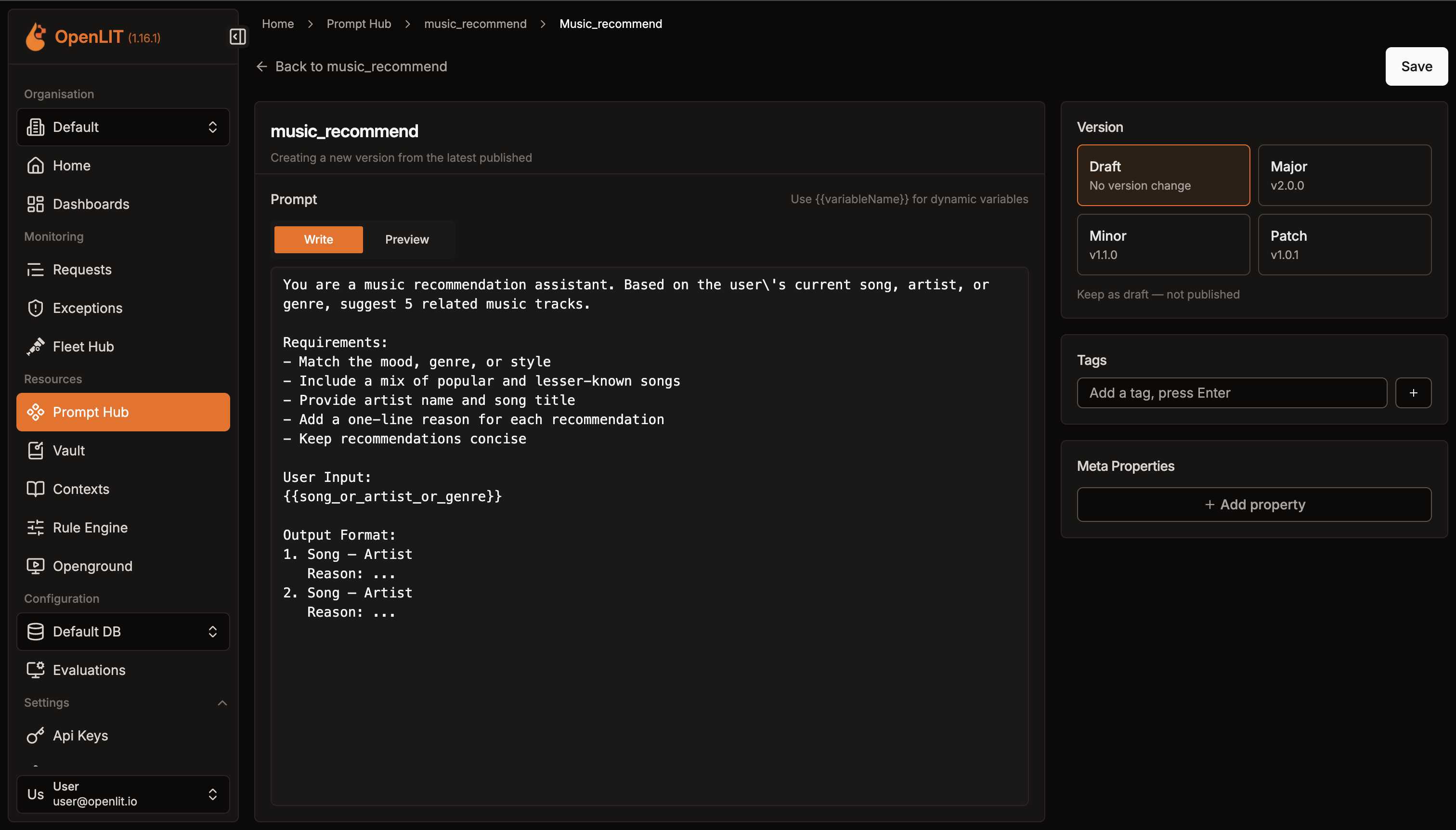
- Name - required. As you type, the input is automatically lowercased, spaces become underscores, and any character outside
a-zand_is stripped, matching the hint “(lowercase letters and _ only)”. The name can’t be changed once the prompt is created. - Prompt content editor - has a hint to “Use
{{variableName}}for dynamic variables”, an inline “Improve prompt with Otter” assistant bar above it (see AI Prompt Improvement), and Write / Preview tabs below - Write is a plain text editor with line numbers, and Preview renders your content as Markdown (showing “Nothing to preview yet.” if the editor is empty). - Version - four cards: Draft, Major, Minor, or Patch. See Versioning for what each one does.
- Tags - add free-form tag chips by pressing Enter or clicking the ”+” button; remove them individually.
- Meta Properties - repeatable Key/Value rows for any metadata you want to attach; add rows with Add property and remove them individually.
Both Name and content are required - you’ll see “Prompt name is required” or “Prompt content is required” if you try to save without them. Saving shows a “Creating prompt…” loading toast, then “Prompt created successfully!” or “Failed to create prompt”. If the name is already taken, saving fails with “Prompt name is already taken!”.
Viewing a prompt
Section titled “Viewing a prompt”The detail page (/prompt-hub/[id]) shows the prompt’s name (with a Draft badge if the version you’re viewing is the draft), its version number, and “Published on {date}”. Below that: tag badges, the read-only rendered prompt content, and a Meta Properties table if any were set.
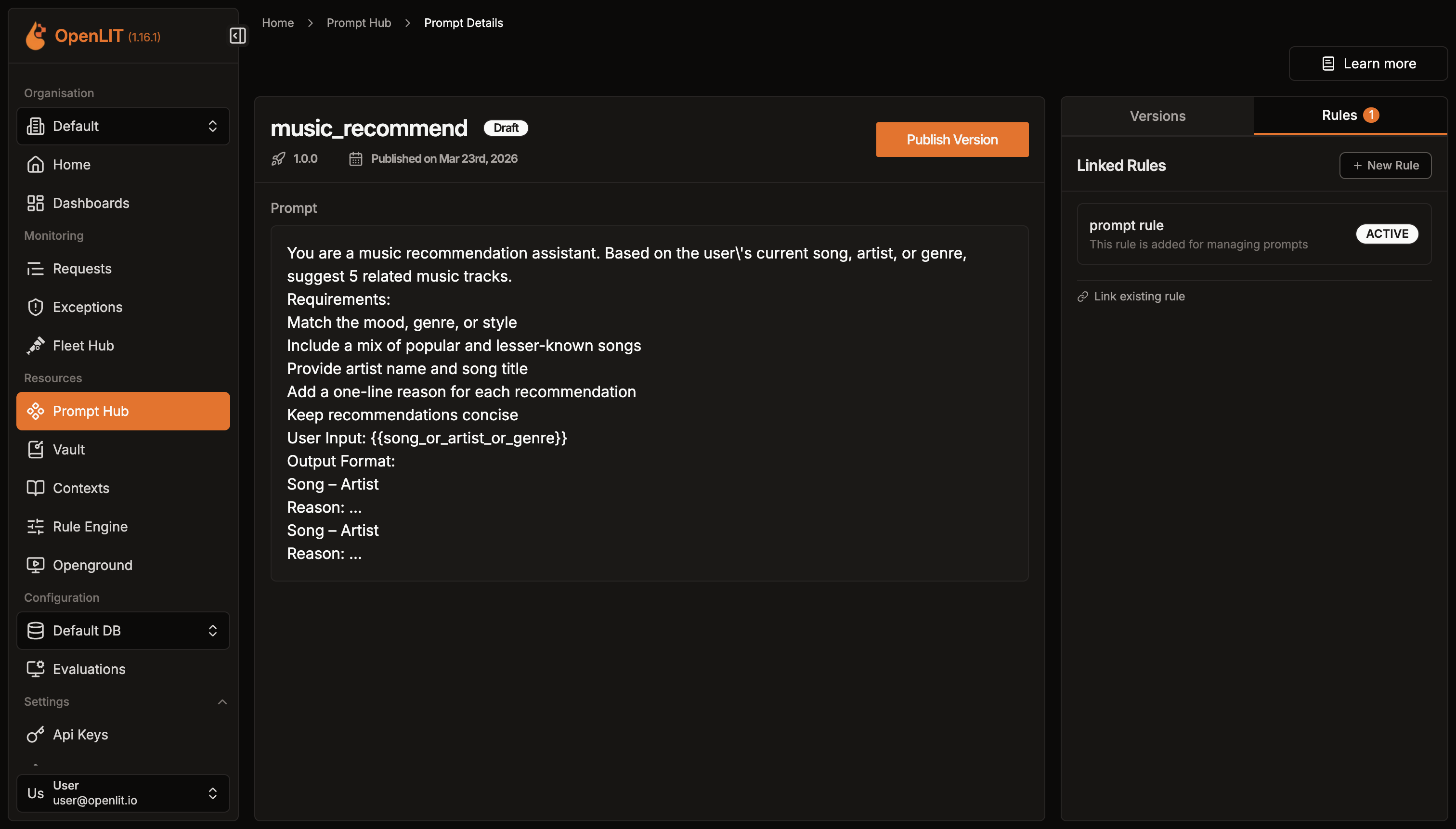
The action button changes depending on what you’re looking at:
- Publish Version - shown when you’re viewing the draft, and takes you to the edit page to finish and publish it.
- Create New Version - shown when you’re viewing the latest published version and there’s no pending draft, and takes you to the edit page to start a new version from it.
On the right side of the detail page are two tabs: Versions (covered in Versioning) and Rules (covered in Rules).
You can also open any past version directly by adding ?version=X to the detail page URL.
Editing a prompt
Section titled “Editing a prompt”The edit page (/prompt-hub/[id]/edit) has the same layout as the create page, minus the Name field. It loads your current draft if one exists, or otherwise the latest published version as a starting point for a new one. The subheading tells you which mode you’re in:
- “Editing draft - publish when ready” - you’re modifying the existing draft.
- “Creating a new version from the latest published” - you’re starting a new version on top of the latest published one.
The same Draft / Major / Minor / Patch version picker appears here too, except the Draft option reads “No version change” / “Keep as draft - not published” instead of the create page’s wording. The Save button shows “Saving…” while in progress, then “Prompt saved!” on success or “Failed to save prompt.” on failure.